Bills
Create, issue, and track payment on customer bills.
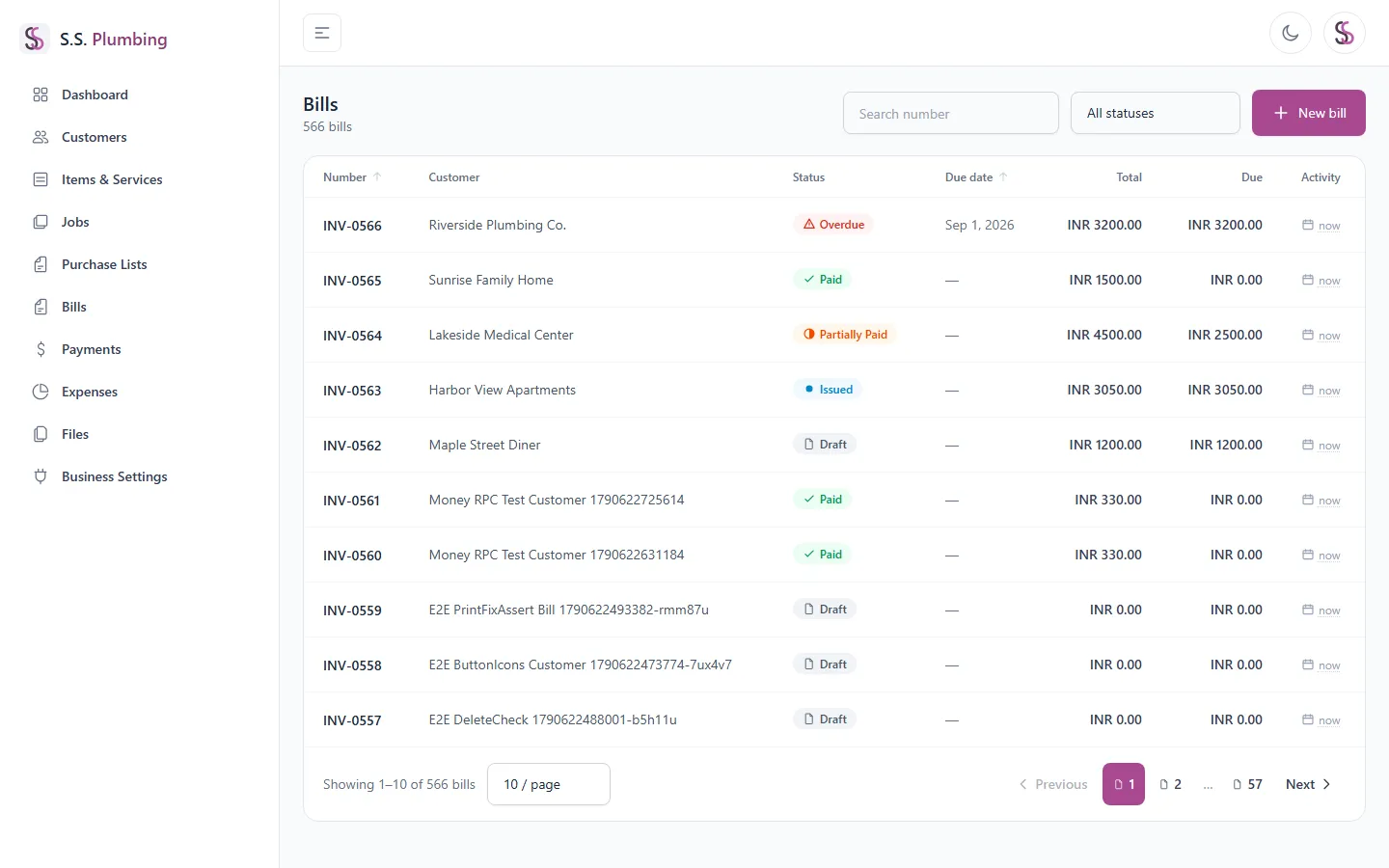
The bill list
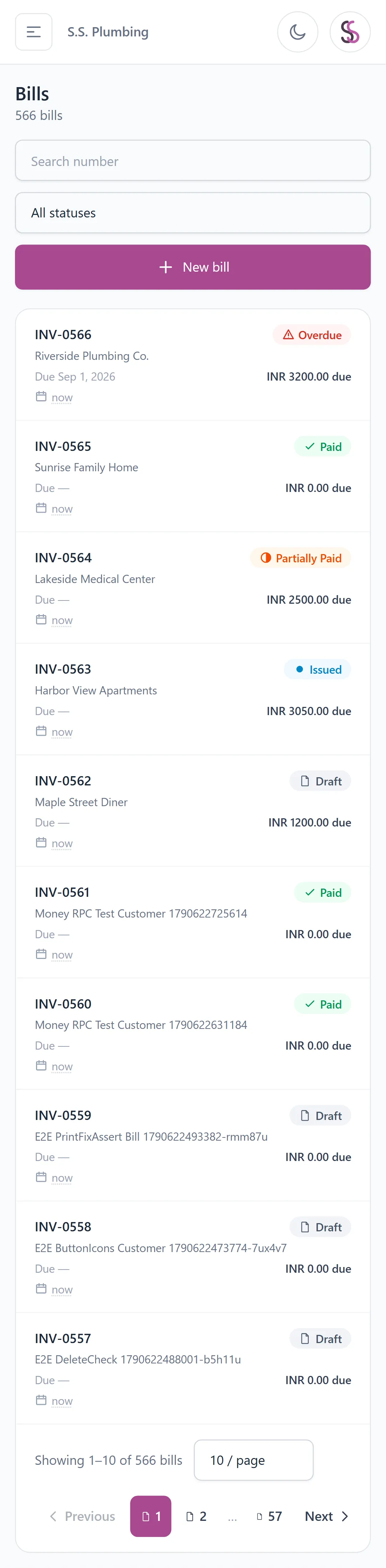
Search, filter by status, sort, and page through your bills.
Creating a bill
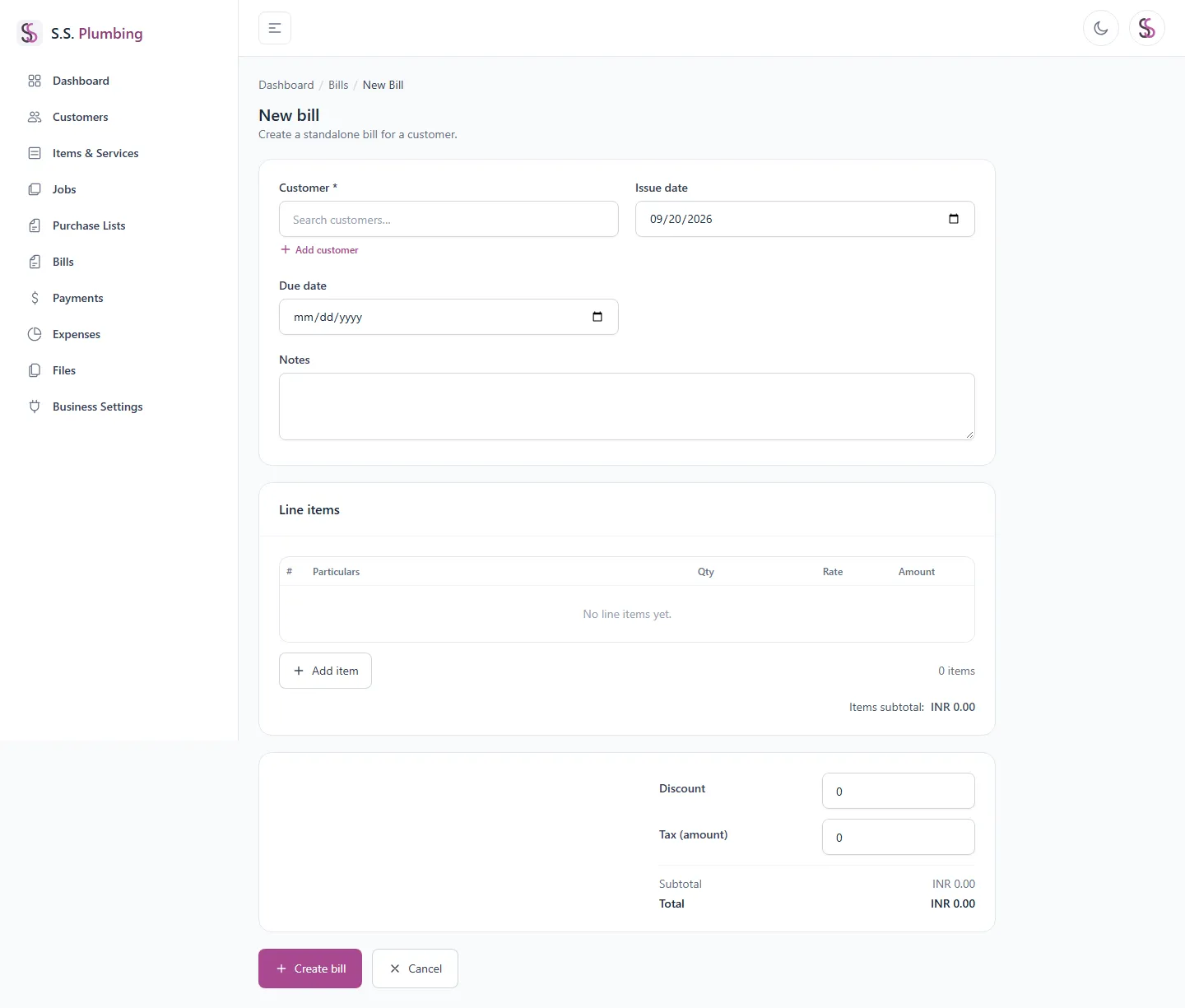
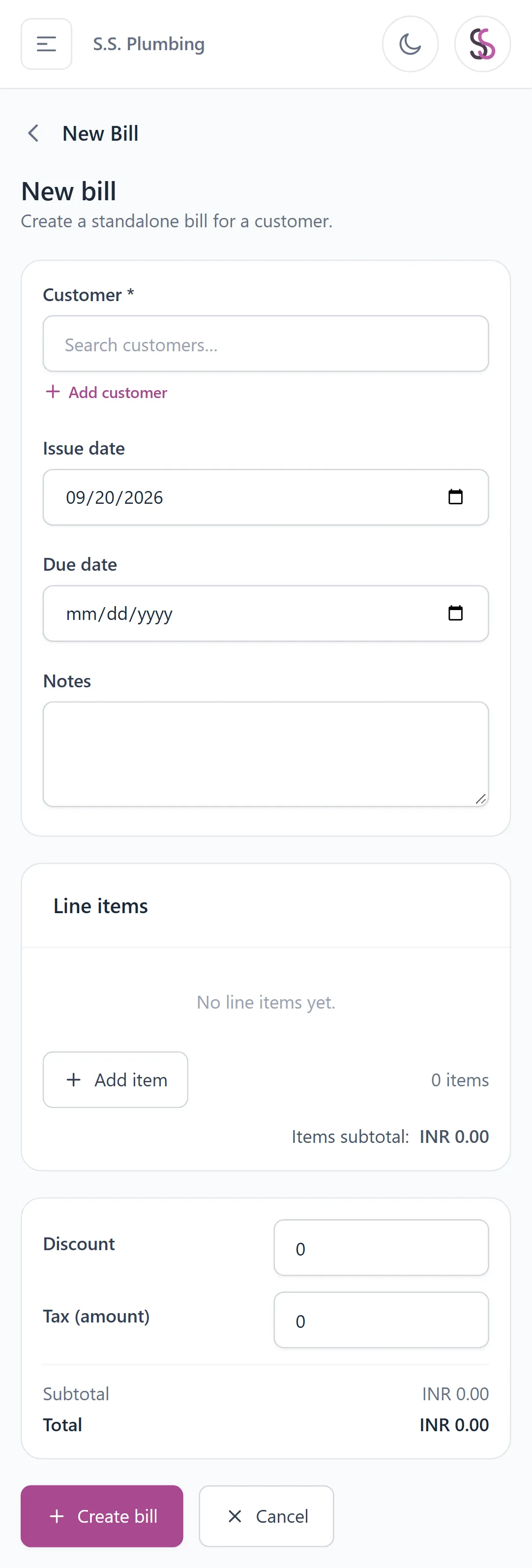
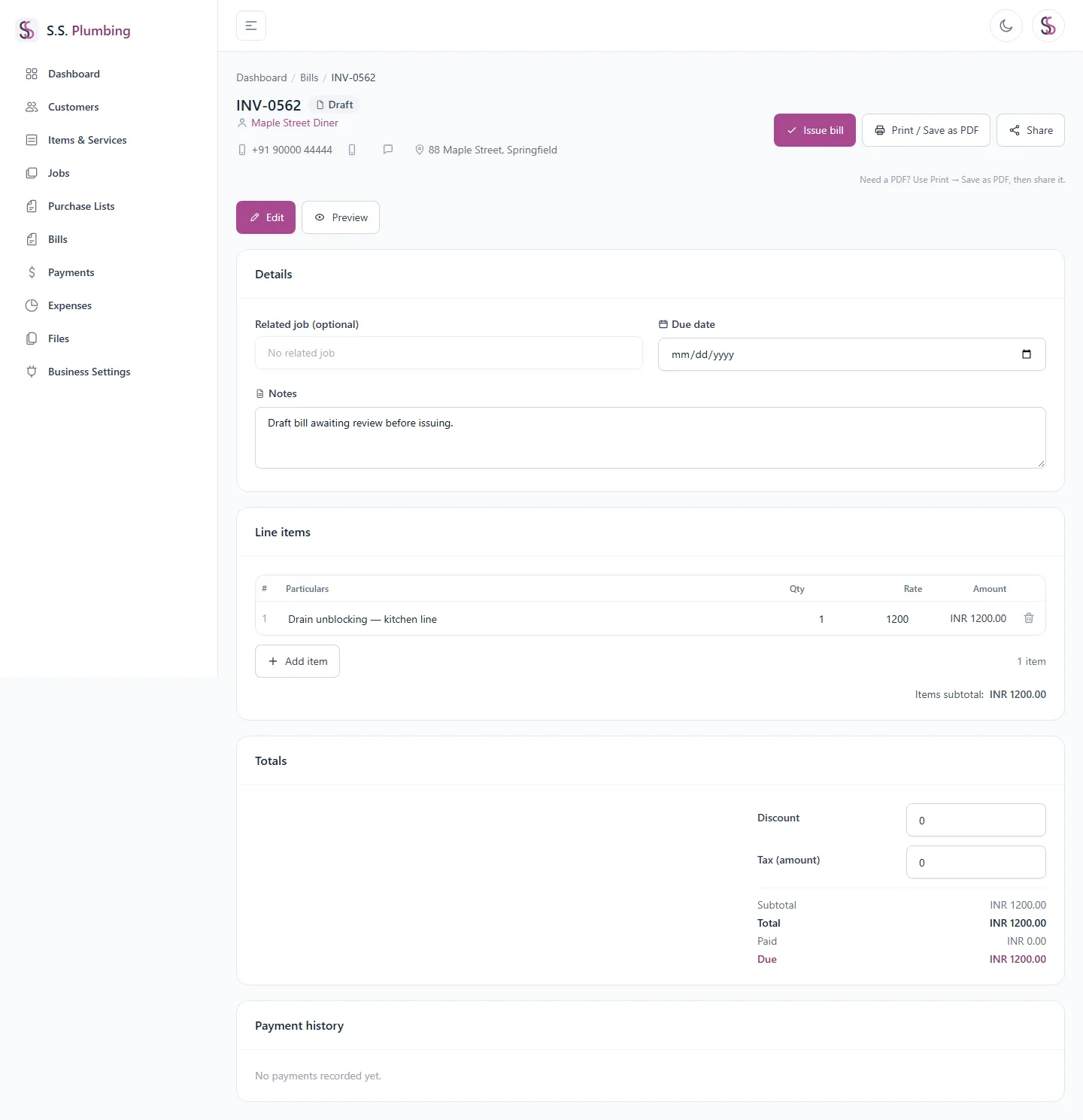
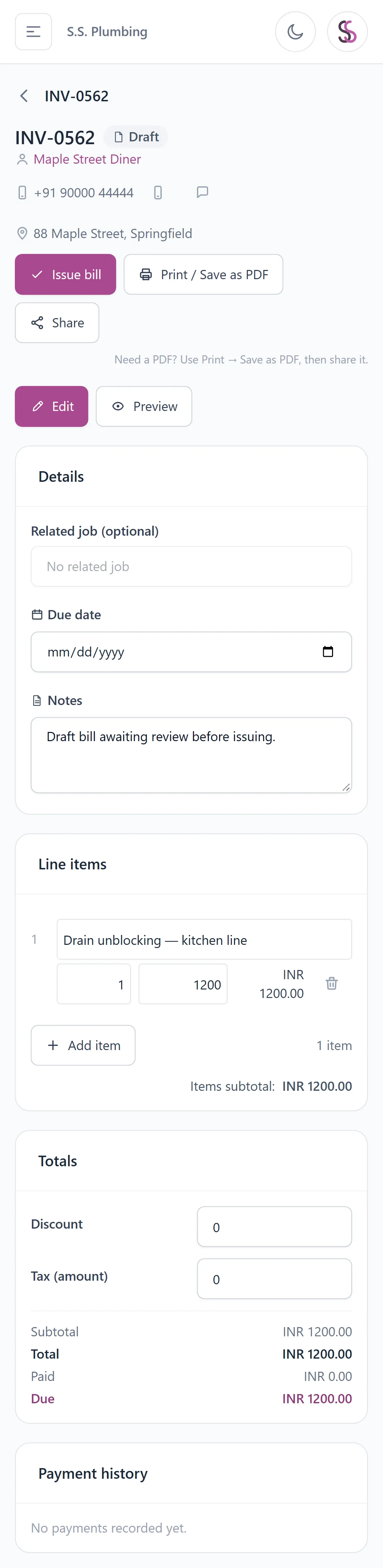
Fill in the header: customer (required — unlike a Purchase List, a bill always needs a customer), job (optional), issue date, due date, and notes.
Line items on a bill are free-text: particulars, quantity, rate, and amount, with no catalog picker.
Good to know
Unlike a Purchase List, Bill line items are typed fresh each time rather than pulled from your Items & Services catalog — bills often need custom wording per customer (labour descriptions, one-off charges) that doesn't belong in a reusable price list.
Totals show discount, tax (hidden entirely if tax is turned off in Business Settings), subtotal, and total, calculated live as you type.
Issuing a bill
A new bill starts as a Draft, with Edit and Preview tabs. While it's a Draft you can freely change the header, line items, and totals.
Can't be undone
Issuing a bill locks its line items and header for good — once you tap "Issue bill", you can no longer edit the particulars, quantities, rates, discount, or tax on that bill. It moves from Draft to Issued and payments can then be recorded against it. "Issue bill" is disabled while the bill has zero line items.
Tracking an issued bill
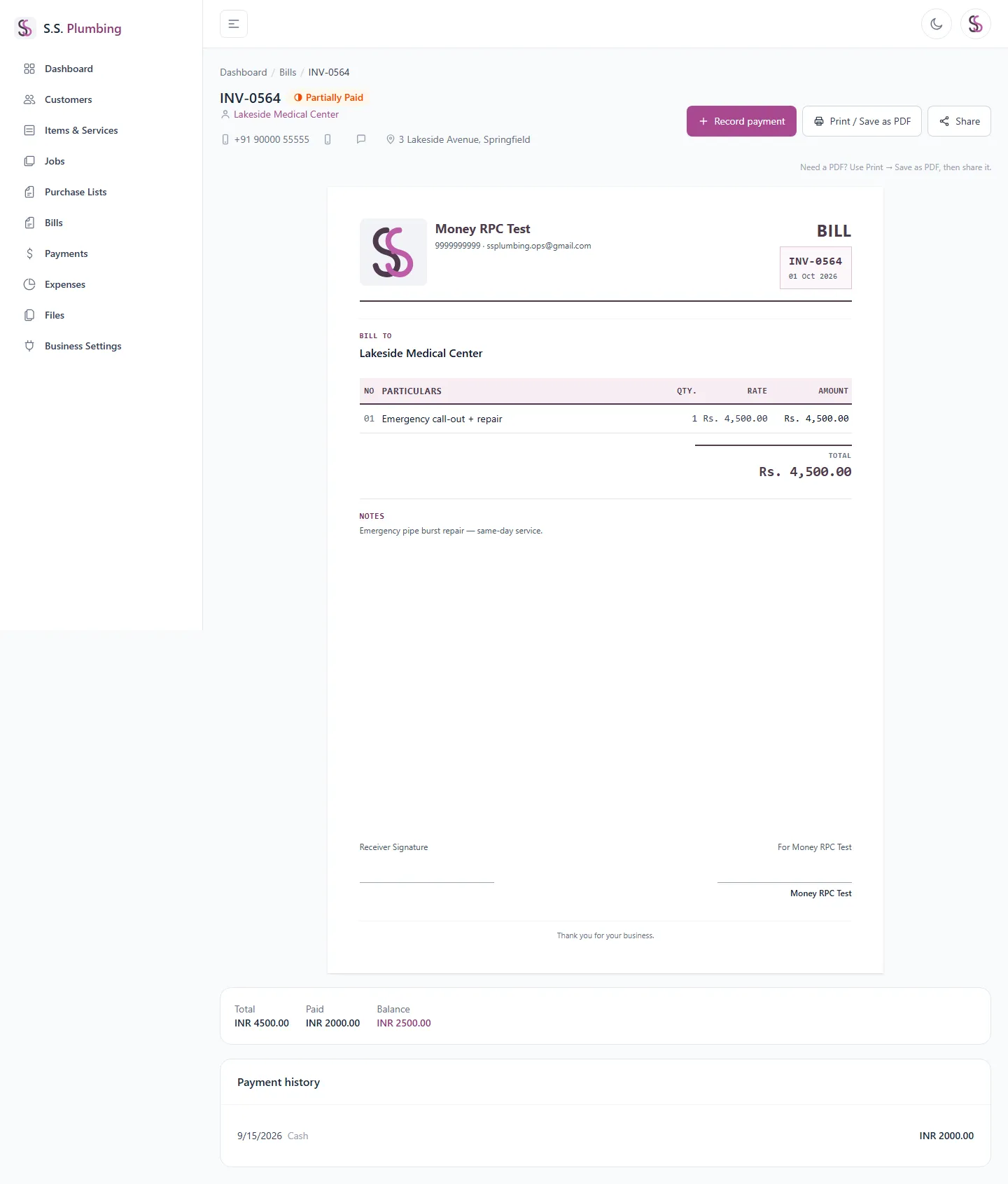
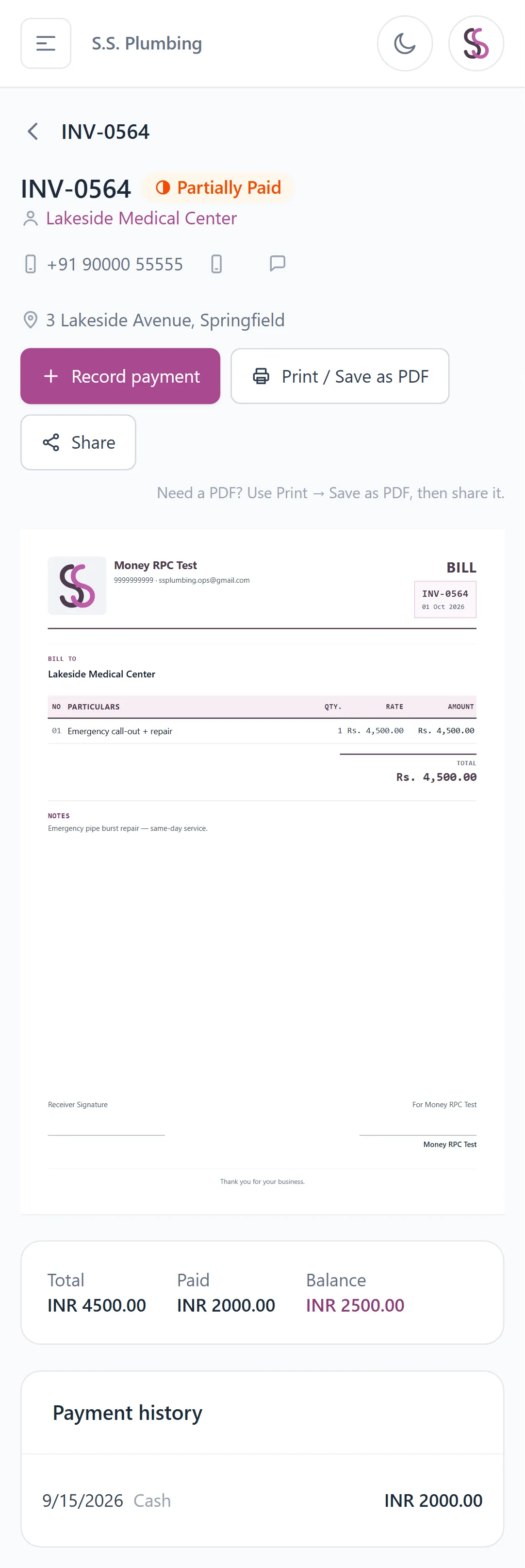
- A Total / Paid / Balance summary strip appears once a bill is no longer a Draft.
- "Record payment" appears only when the bill is Issued or Partially Paid and has a balance greater than zero — see Payments.
- Every payment made against the bill is listed in its payment history.
- The overdue badge is calculated automatically from the due date — see below.
Good to know
A bill shows as Overdue when today is past its due date and it's not already Paid or Cancelled (and not still a Draft). It's a display-only badge, not a separate status you set.
Good to know
Statuses: Draft, Issued, Partially Paid, Paid, Overdue, Cancelled.
The printed bill
The printed bill shows your letterhead, the items table, and the Total only — discount and tax aren't itemised on the printed copy. Optional extras you can turn on in Business Settings: total written out in words, a UPI QR code (only shown while a balance is still due), and a signature block. See <a href="/help/printing-sharing" class="underline">Printing & sharing</a>.