Purchase Lists
A materials/services list to print and hand to a store or a customer — no pricing shown on the printed document.
The Purchase List list
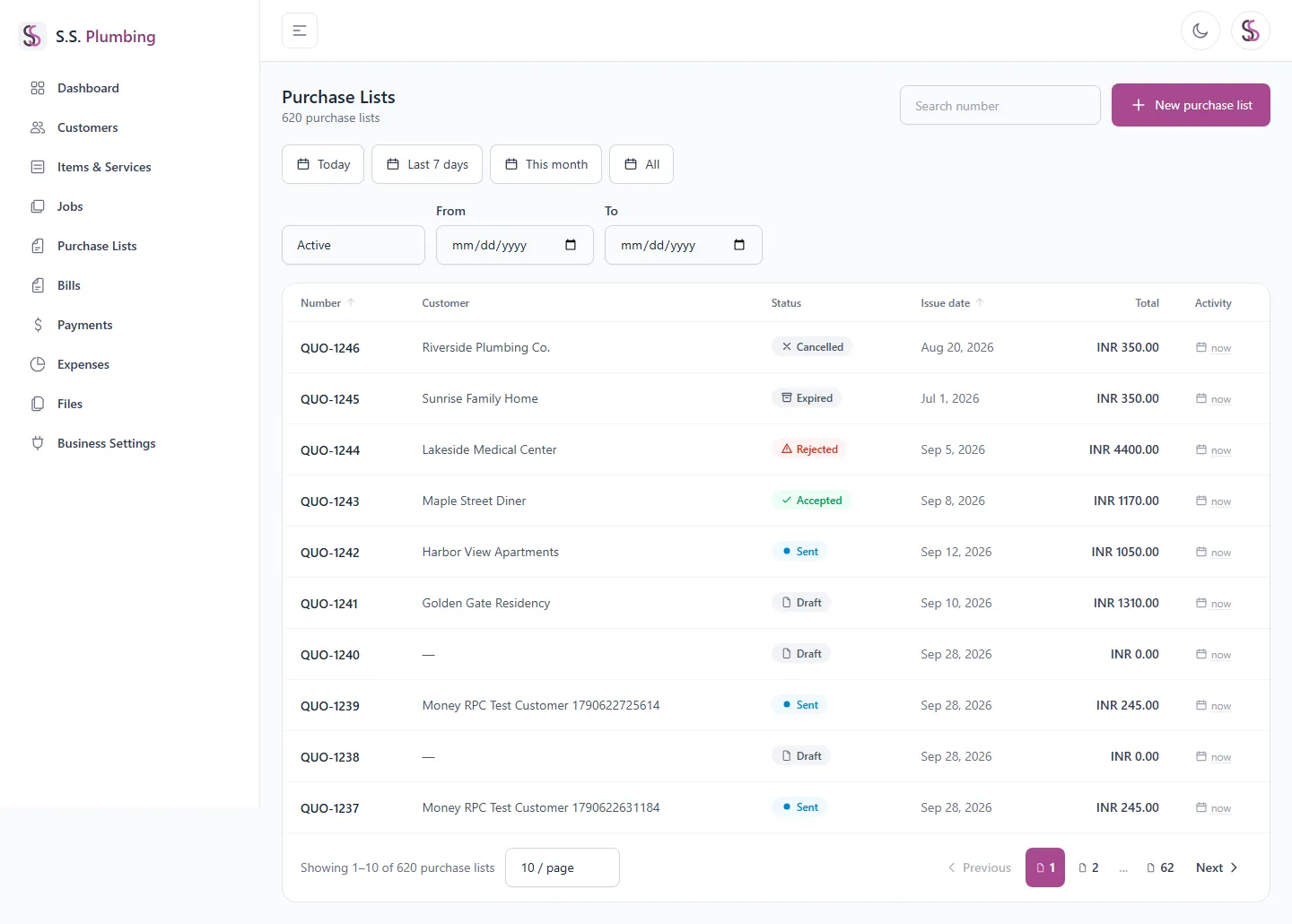
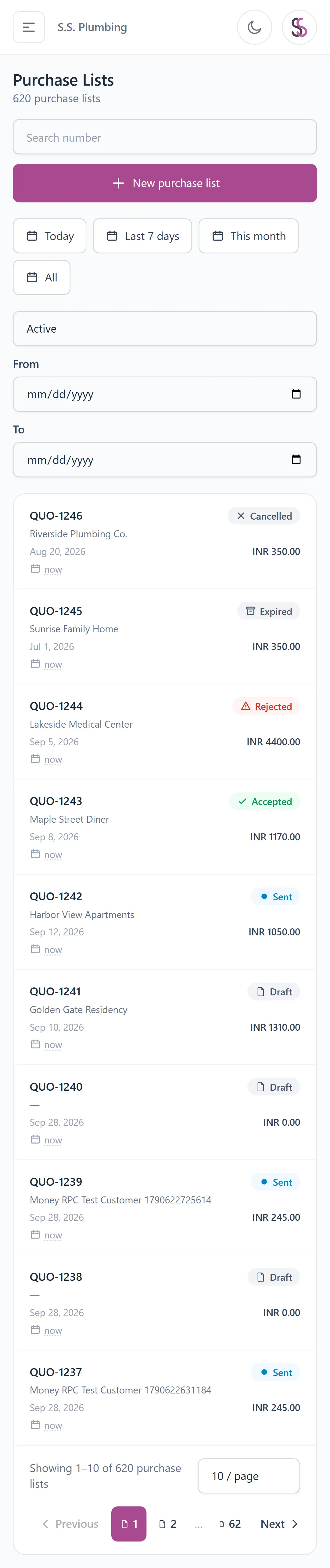
Search, filter by date range (with Today / Last 7 days / This month / All presets), and toggle between active and archived lists.
Creating a Purchase List
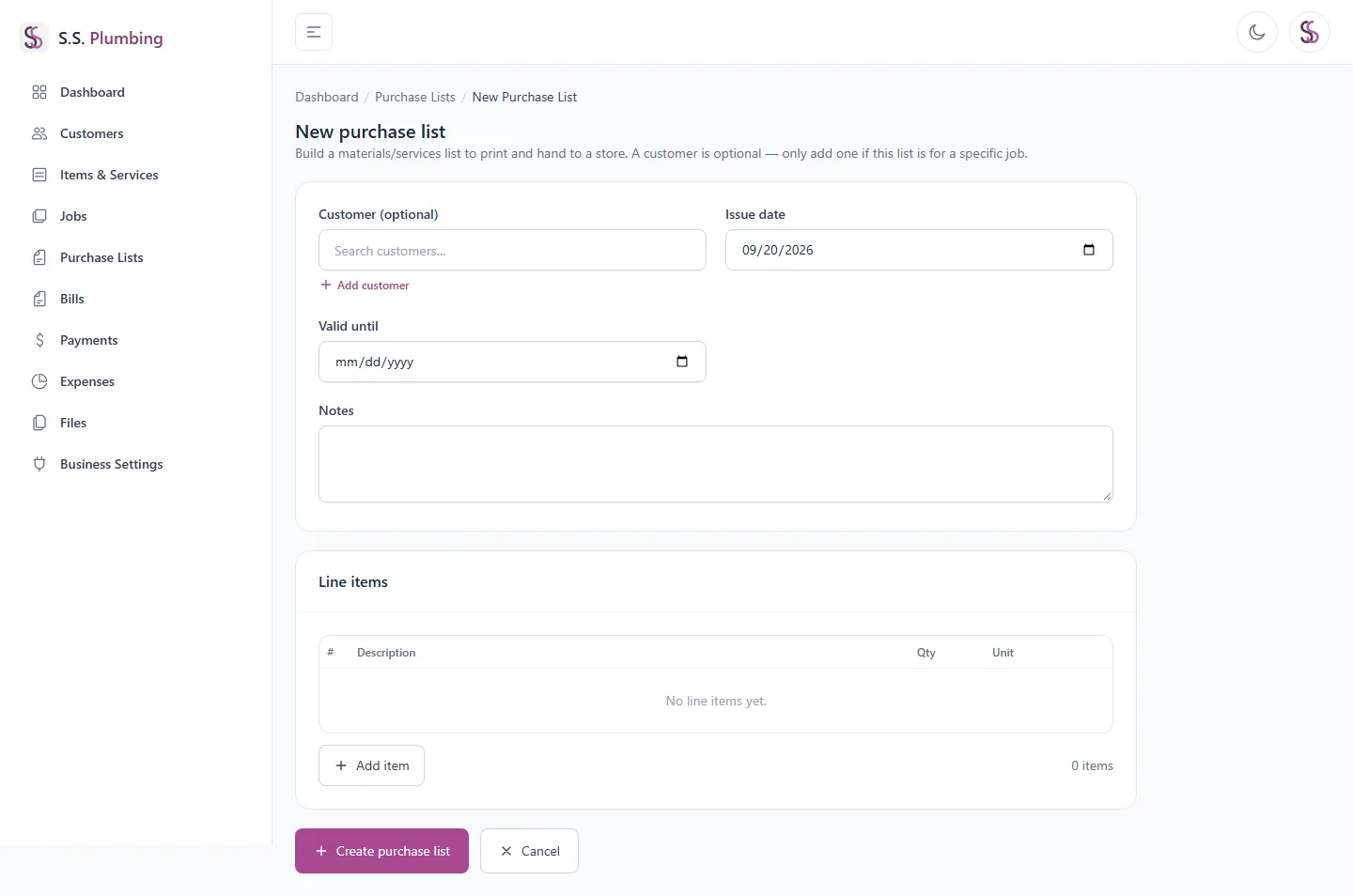
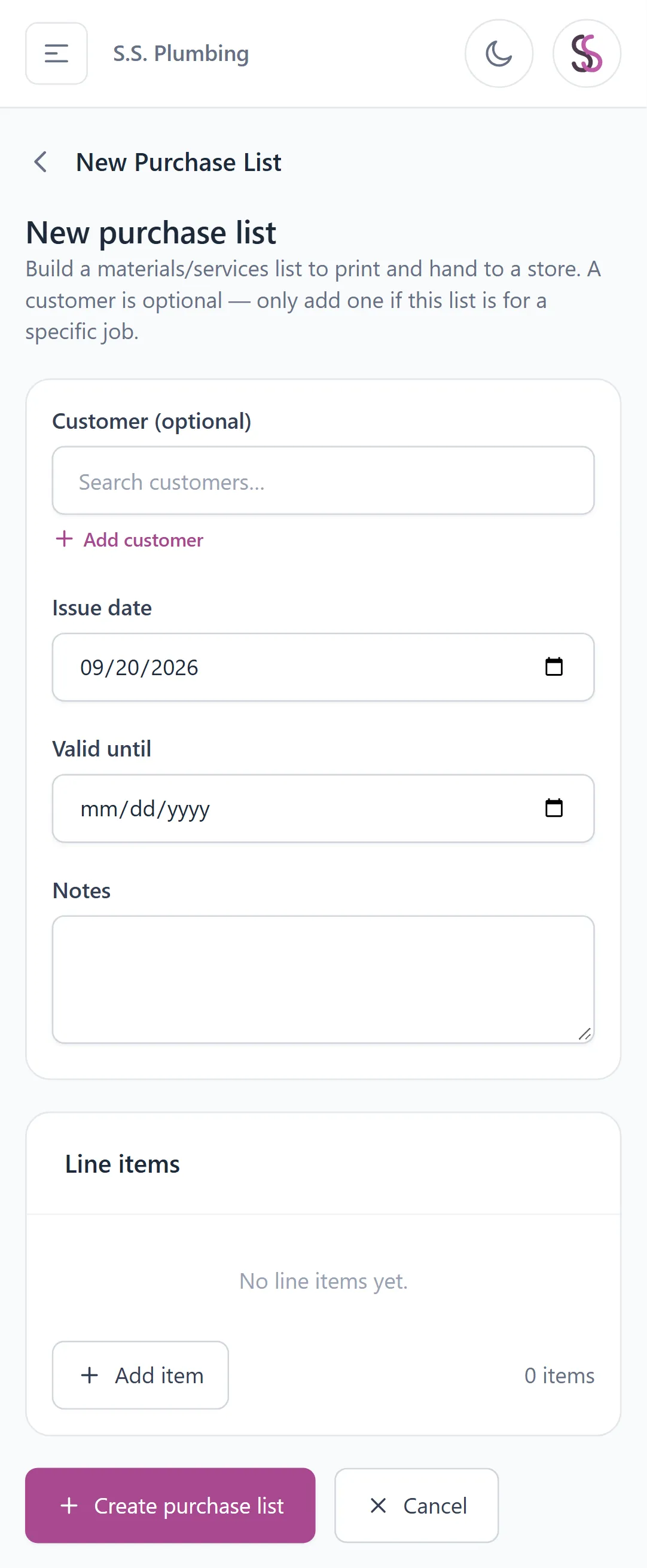
Fill in the header: customer, job (optional), issue date, valid-until date, and notes.
Good to know
Customer is optional on a Purchase List — only add one if this list is for a specific job. A quick "Add customer" shortcut is built into the form if the customer isn't in the system yet.
Then build the line items: pick from your catalog, create a brand-new catalog item on the spot, or type a one-off custom item that won't be saved to the catalog. Edit quantity/unit inline, remove a row, or press Enter to add the next row.
Good to know
Catalog items come from your Items & Services price list and can be reused later. A custom item is for a one-time thing you don't want cluttering your catalog.
Managing a Purchase List
- Edit and Preview tabs let you work on the list and see how it will print.
- "Save line items" only appears once you've made unsaved changes.
- Header fields (job, valid-until, notes) can be changed any time; the customer can only be changed while the list is still a Draft — once it moves past Draft it's locked, with a hint explaining why.
- Delete moves a list to Archived (with a confirmation step) rather than deleting it outright — restore it any time, though it stays read-only while archived.
Good to know
Statuses: Draft, Sent, Accepted, Rejected, Expired, Cancelled.
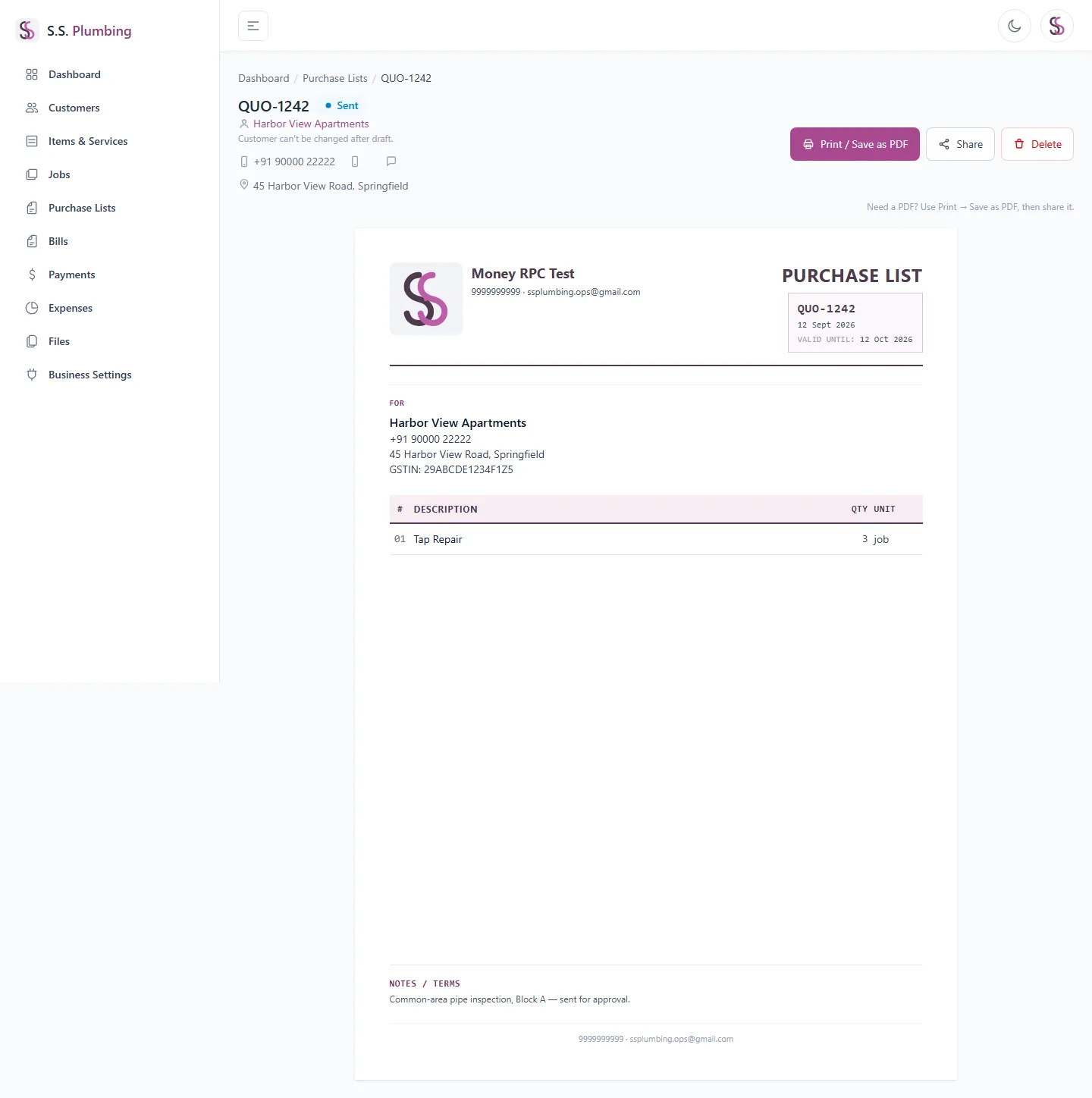
The printed document
The printed Purchase List shows your letterhead, an items table with no pricing, your terms & conditions, and a footer. See <a href="/help/printing-sharing" class="underline">Printing & sharing</a> for how to print, save as PDF, or share it.