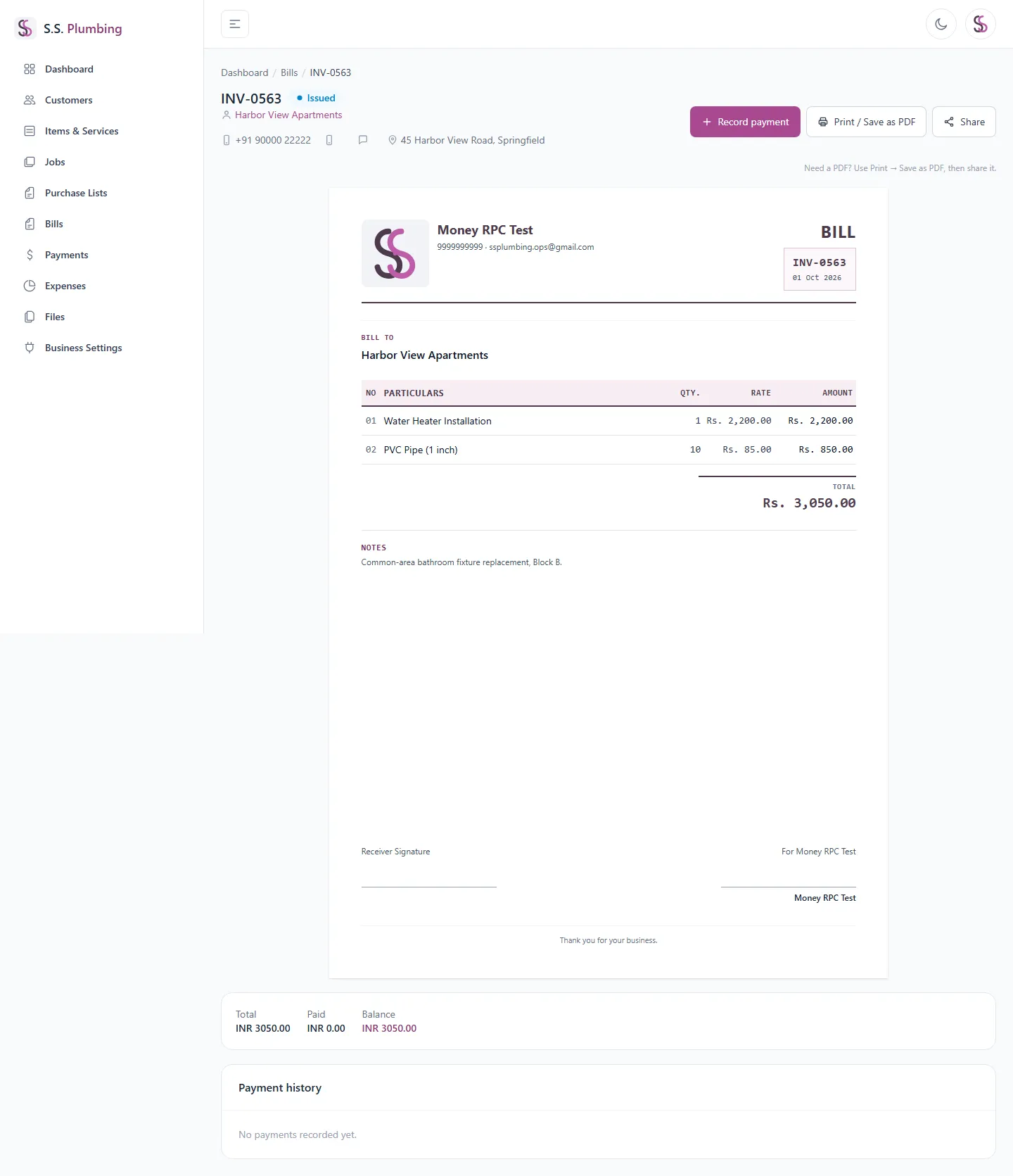
Printing & sharing
How to print, save as PDF, or share a Purchase List or Bill — works the same way on both.
Print / Save as PDF
On a Purchase List or Bill's detail page, the Print button opens your browser's normal print dialog. There's no separate PDF generator in the app — choosing "Save as PDF" as the printer in that dialog is how you get a PDF file.
- The navigation, header, and action buttons are hidden automatically when printing, leaving only the document itself.